Downloading a restored vintage illustration from Century Library is the easy part — getting it into Adobe Illustrator as clean, editable vector artwork is where most designers stall. This guide walks through the full import-to-edit workflow, plus what to do when a plate opens as a raster file instead of a vector one.
- Century Library vector downloads (SVG/EPS) open directly in Illustrator via File > Open, then need ungrouping before you can recolor individual elements.
- Raster plates (PNG/JPG) require Image Trace before they behave like vector art in Illustrator 2026.
- Check the license terms before you resell or embed a restored plate into a product line — commercial scope varies by asset type.
- Set your color mode to CMYK first if the final piece is print, not RGB screen work.
Why this matters
A hand-restored plate from a 19th-century archive isn't drawn the way a modern vector illustration is. The paths can be dense, the layers can be flattened during restoration, and a botanical engraving with hundreds of stipple marks behaves very differently in Illustrator than a clean SVG icon. Skip the setup steps below and you'll spend an hour fighting a locked layer instead of designing.
The workflow below applies whether you're pulling a plate for packaging, a wedding suite, or a print-on-demand product line — the import mechanics in Illustrator don't change based on end use, only the file resolution and color mode you export at.
Before you start
- An active Century Library subscription with download access to the archive — you need this to pull the plate file itself, not just preview it.
- Adobe Illustrator 2026 (or a recent CC version) installed and updated — older builds sometimes mishandle embedded EPS color profiles from scanned sources.
- The gotcha: restored vector files often ship as a single compound path or a grouped object, not pre-separated layers. If you try to recolor one element before ungrouping, you'll recolor the entire plate. Ungroup first, always.
Set up your Century Library download
- Log into your Century Library account and locate the plate or pattern you want.
- Choose the vector format (SVG or EPS) if the asset offers one — raster-only ephemera and texture packs are covered in the second workflow below.
- Download the file to a folder you'll actually find again — vintage archive downloads pile up fast once you start browsing.
Expected result: a single SVG or EPS file sitting in your downloads folder, ready to open.
Import the file into Illustrator
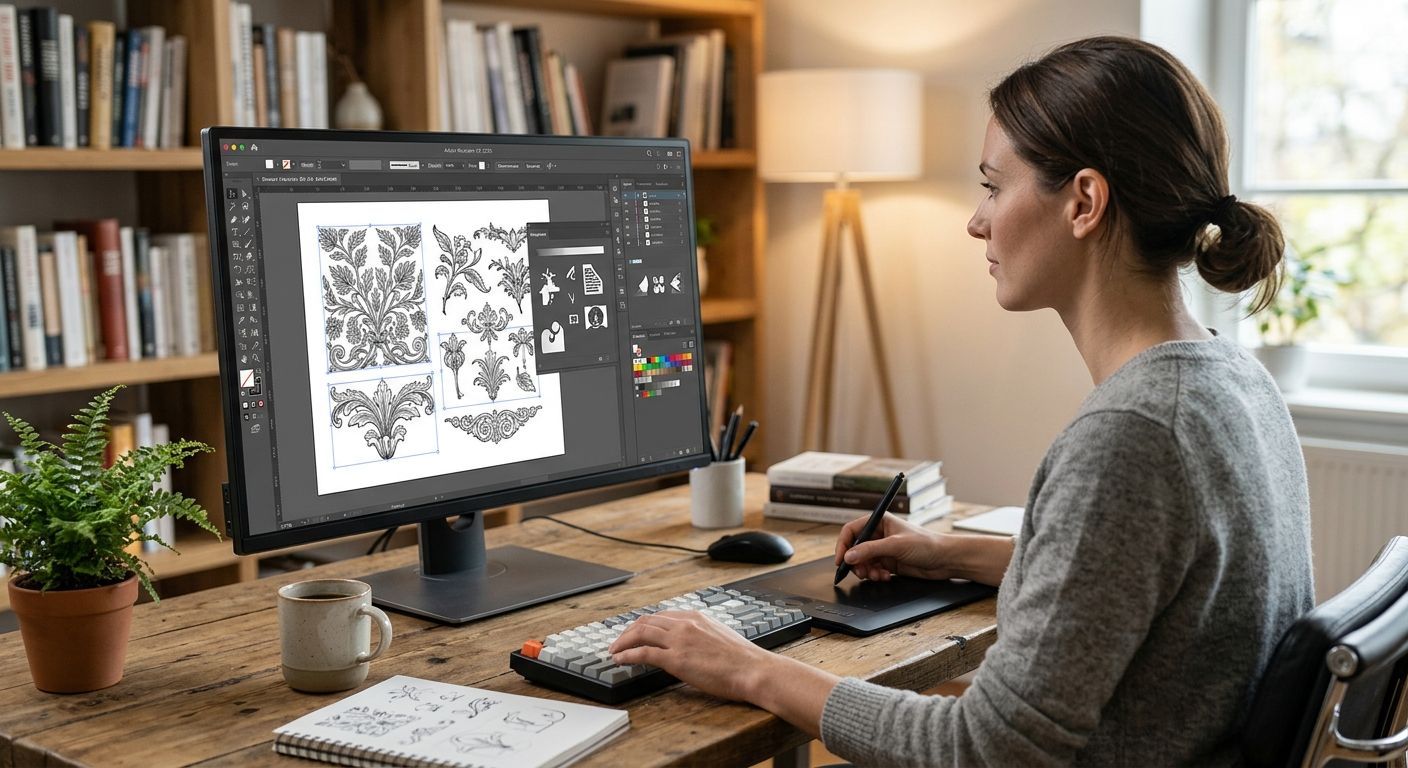
- Open Illustrator and go to File > Open, then select the downloaded SVG or EPS.
- If Illustrator prompts an SVG Import Options dialog, leave Preserve Appearance checked so restored line weights and fills import as they were scanned.
- Once the file opens, check Window > Layers — most restored plates arrive as one locked or grouped layer.
- Right-click the artwork and choose Ungroup (or press Shift+Ctrl+G on Windows, Shift+Cmd+G on Mac) to break the plate into its component paths.
Expected result: the plate sits on the artboard as separate, selectable paths instead of one locked block.
Configure the artwork for editing
- Open File > Document Color Mode and confirm CMYK if the final piece is going to print — Century Library plates are restored at high resolution, but color mode still has to match your output.
- Use the Direct Selection Tool (A) to click individual paths. This is how you isolate a single leaf, letterform, or ornament flourish inside a larger illustration.
- To recolor an element, select the path and adjust fill in Window > Color, or use Edit > Edit Colors > Recolor Artwork to shift the entire plate's palette at once.
- If fine engraving detail looks jagged when scaled up, go to Object > Path > Simplify and lower Curve Precision slightly — this smooths without flattening the hand-restored linework.
Expected result: a fully editable vector plate with paths you can recolor, resize, and layer into your own composition.
Working with raster plates: the Image Trace variant
Not every asset in the archive ships as a clean vector. Textures, ephemera scraps, and some ornamental frames are delivered as high-resolution PNG or JPG. Here is the variant workflow for those.
- Open the PNG or JPG through File > Open.
- Select the placed image, then open Window > Image Trace.
- Choose the Black and White Logo preset for line-art plates, or High Fidelity Photo for textured or shaded ephemera.
- Click Object > Image Trace > Expand to convert the traced result into editable paths.
- Ungroup the expanded result before recoloring individual elements, exactly as above.
Expected result: a raster plate converted into scalable vector paths — useful for line-heavy engravings and border ornaments that need to reach poster size without pixelation.
“Ungroup before you recolor — every restored plate opens as one locked shape until you tell Illustrator otherwise.”
Troubleshooting
- Colors look duller after import. The document is in RGB while your output is print. Switch via File > Document Color Mode > CMYK.
- Ungroup does nothing visually. The plate is still a compound path rather than a group. Run Object > Compound Path > Release first, then ungroup.
- Selection feels laggy. Dense engraving plates carry thousands of anchor points. Run Object > Path > Simplify to cut point count without visibly changing the linework.
- A pattern shows seams when scaled. Check that the swatch tile boundary in Window > Swatches matches the artboard units you're working in — mismatched units cause visible joins.
- Image Trace produces a blobby result. Switch from High Fidelity Photo to Black and White Logo for line-art scans. Photo presets over-smooth fine engraving detail.
Customize your workflow
Once a plate is editable, the workflow branches by destination. Building a full identity means combining the imported illustration with type — the old English fonts in the same archive pair naturally with restored engravings for a period-accurate look.
If a client needs to make small text edits themselves in Canva rather than Illustrator, the Century Library to Canva workflow covers that handoff step by step.
Before reusing a plate across a product line or selling derivative work, confirm scope on the license terms comparison page. Commercial rights differ across vintage asset subscriptions, and five minutes of reading beats reprinting 500 units in 2026.
Browse the restored archive
50,000+ hand-restored illustrations, fonts and patterns for commercial projects.
FAQ
Can I open Century Library vector files directly in Illustrator?
Yes. SVG and EPS downloads open through File > Open in Illustrator 2026 without conversion. Ungroup the artwork immediately to access individual paths for recoloring.
Why does my downloaded plate open as one locked shape?
Restored vector plates are typically delivered as a single group or compound path to preserve the original composition. Use Object > Ungroup, or release the compound path first, to separate elements.
Do I need Image Trace for every Century Library asset?
No. Image Trace applies only to raster formats like PNG or JPG. Files already delivered as SVG or EPS are vector and skip tracing entirely.
What color mode should I use for print projects?
Set the Illustrator document to CMYK via File > Document Color Mode before working on a restored plate meant for print in 2026. RGB documents shift color during output.
Can I recolor a single element without changing the whole illustration?
Yes. Use the Direct Selection Tool (A) to click one path at a time after ungrouping, then adjust fill through the Color panel.
Is Century Library artwork AI-generated?
No. The archive is built from hand-restored historical sources, not AI-generated imagery, which is why fine engraving detail behaves like scanned linework in Illustrator.
How do I fix jagged edges after scaling a plate up?
Select the path and use Object > Path > Simplify, lowering Curve Precision slightly. This smooths the curve without losing restored detail.
Can I use a restored plate in a commercial product line?
That depends on the license tied to your subscription. Check the license terms breakdown before applying a plate to packaging or resale products.
One last thing
The biggest time-waster here isn't Illustrator. It's skipping the ungroup step, then spending twenty minutes trying to select a single leaf that's locked inside a compound path with four hundred other anchor points. Ungroup first, every time, and the edit takes minutes instead of an afternoon.